We’ve prepared more new features to make your everyday work with Elementary POS even easier. This time, the updates focus on sales categories. You can now set up Favorite Categories in Elementary POS, so the categories you use most often are always just one click away.
You can also choose which specific users have access to each category. This allows you, for example, to divide food and beverage service between staff members and make sure that each employee only sees the categories they actually need for their work.
Elementary POS is now even more organized and can be tailored to your needs. With these new features, serving your customers is faster and more convenient than ever!
Favorite Categories
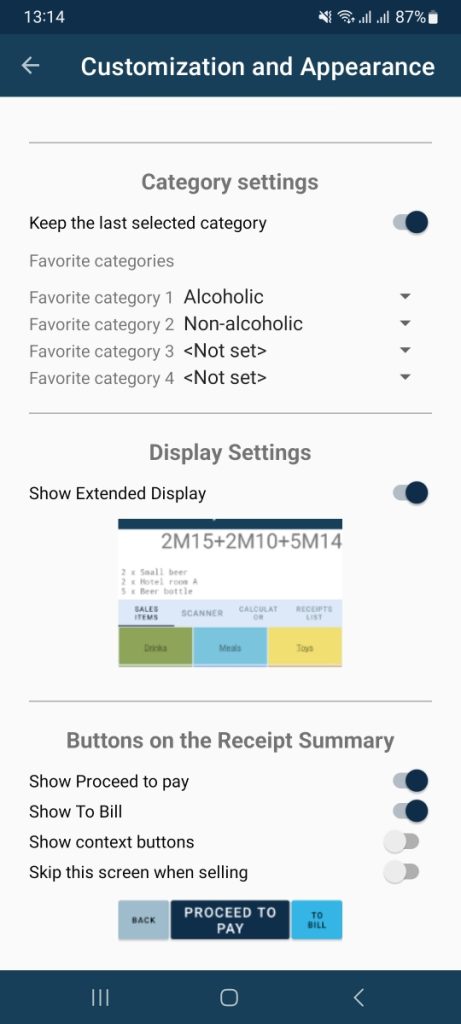
You can set a category as a Favorite in the Elementary POS app under Settings – Customization and Appearance, in the Category Settings – Favorite Categories section.
You can select up to 4 of the categories you use most often and always have them quickly at hand. These can also be categories that are part of other categories, such as Alcoholic and Non-Alcoholic as subcategories of Drinks.
You can also set the Elementary POS app to return to the last category you visited after completing a sale instead of returning to the home screen. Simply enable the Keep the last selected category option.
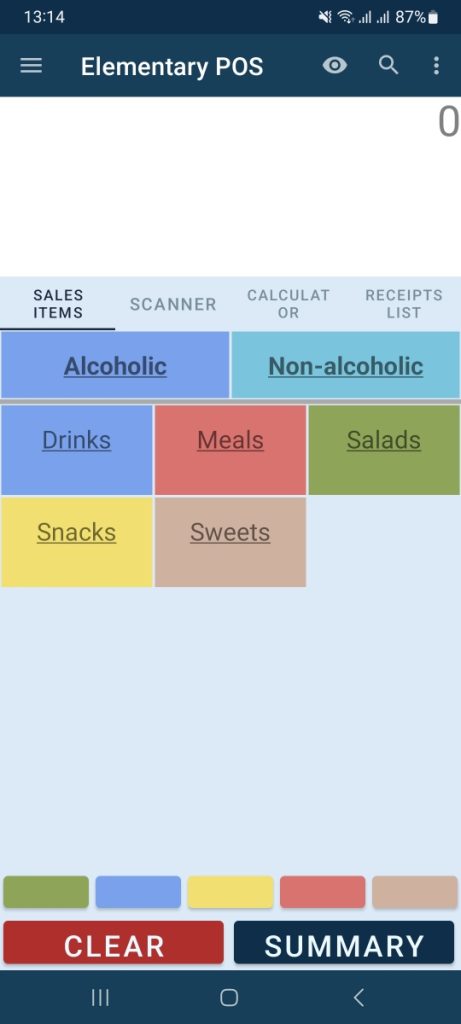
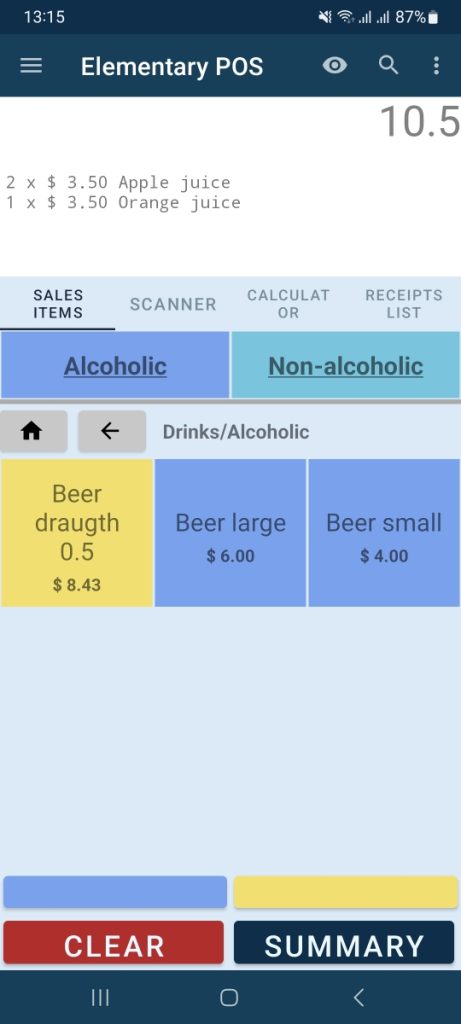
When you set a category as a Favorite in the app, it remains displayed at the top of the order screen, above the list of categories. You don’t have to search for it in the menu, so you can add your most frequently sold items faster – just click on the relevant category.
Favorite Categories remain visible on the screen while taking orders. You therefore don’t need to navigate through the menu to find items from these categories – you can easily add them to the order at any time.
Set Category Access by User
Elementary POS also allows you to make specific sales categories available only to selected users. This can be useful, for example, if you want to divide food and beverage service between staff members and give each employee access only to the categories they need for their work.
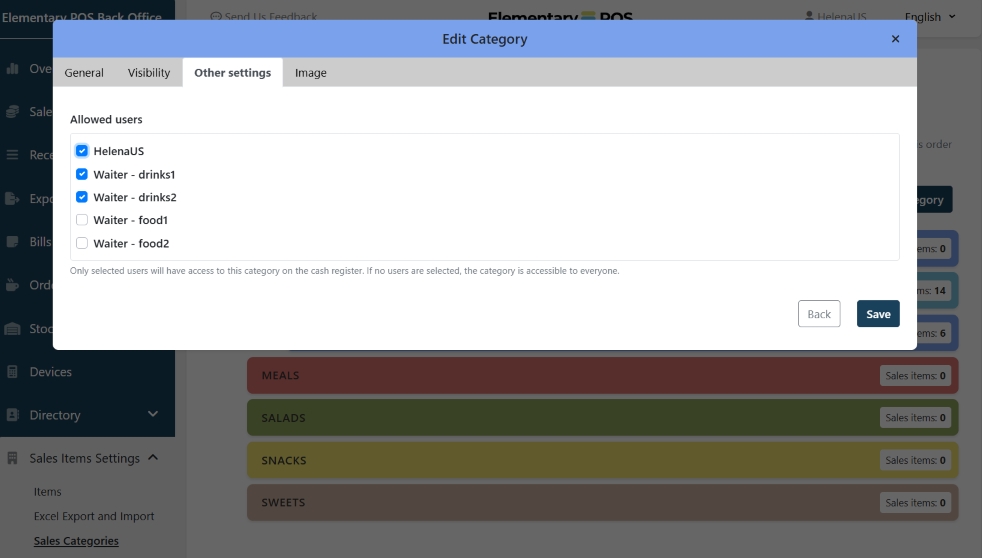
You can manage user access to individual categories in the Elementary POS Back Office. Go to Sales Item Settings – Sales Categories, open the category whose access you want to change, and select the Other Settings tab. Here, you can select the specific users who are allowed to access the category in the app. The category will not be visible to other users.
If you want to keep the app organized while still allowing all users to access all categories, you can use the color filter instead of setting user access rights. You can find the color filter at the bottom of the Elementary POS app screen. Simply click to select only the category colors that are relevant to you.
We hope these new features will make your everyday work with Elementary POS even easier! These features are available from app version 4.80. If your app has not updated automatically, please download the latest version from Google Play.