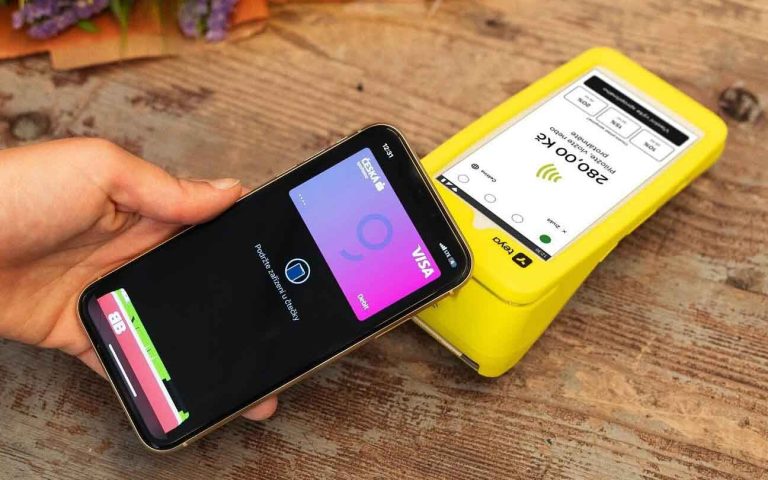
You can use Elementary POS with your Teya payment terminal in two ways. You can install Elementary POS directly on your Teya terminal, combining your POS system and card payment processing in one device. Alternatively, you can use Elementary POS on a tablet or mobile phone connected to your Teya payment terminal.
Elementary POS Directly on Your Teya Terminal
If you want to manage sales and accept card payments on a single device, you can now install Elementary POS directly on your Teya terminal. You can find the app in the terminal menu under Payments – Menu – POS Integrations – Partner Apps – Open App Store.
If you prefer working on a larger screen, you can continue using Elementary POS on a tablet or mobile phone connected to your Teya payment terminal. In this case, follow the instructions below. Once connected, you can accept card payments without manually entering the amount on the terminal. The payment amount is transferred automatically from Elementary POS to the terminal, saving time and reducing the risk of errors.
Setting Up the Teya Payment Terminal
Elementary POS Directly on Your Teya Terminal
First, you need to configure your Teya terminal so that it can communicate with the Elementary POS app via the internet (cloud). Follow these steps:
- On the terminal’s main screen, tap the Menu icon in the top-left corner.
- Tap the dropdown menu in the top-right corner.
- Select POS Integrations.
- Select External ePOS Integrations.
- Select Cloud Communication.
Connecting the Teya Terminal to Elementary POS
You can connect the Teya terminal to any device with the Elementary POS app installed, including a tablet or mobile phone.
Open the Elementary POS app and follow these steps:
- On the Elementary POS home screen, tap the Menu icon in the top-left corner.
- Select Settings.
- Select Payment card terminal.
- Select Teya Settings.
- Tap Connect.
- Sign in to your Teya account by scanning the QR code or tapping the verification link.
- In the Elementary POS app, select the specific Teya terminal you want to use for payments and select the relevant store.
Once these steps are completed, your Teya payment terminal will be connected to Elementary POS.
When you select Card as the payment method in Elementary POS, the payment amount will automatically be sent to the Teya terminal. Once the customer completes the payment, the transaction will be automatically recorded in Elementary POS.
Testing the Connection
After connecting the terminal, we recommend making a small test payment to make sure everything is set up correctly.
- Add any item to a bill in Elementary POS, preferably with a small amount.
- Select Card as the payment method.
- The payment amount should automatically appear on the Teya terminal’s display.
- Once the payment has been successfully completed, the transaction will be recorded in Elementary POS.
- You can delete the test receipt in the Receipts List in the Elementary POS app.
Troubleshooting and Support
If the connection does not work as expected, please check that your Teya terminal is set to Cloud Communication mode and that it has a working internet connection.
If you need help setting up the Teya integration in Elementary POS, please contact us.
If the issue is related specifically to the Teya terminal or your Teya account, please contact the Teya Help center directly.
The Teya payment terminal integration is available in Elementary POS version 4.80 and later.
If your app has not updated automatically, please download the latest version from Google Play.