Elementary POS allows you to automatically read product weight and price using a barcode scanner. This means faster checkout, fewer errors, and better control over your sales. This feature is especially useful for businesses that sell large amounts of weighed products, such as meat, vegetables, fruit, cheese and deli items, or bulk goods.
How does it work in practice?
- Place the selected product on the scale.
- The scale weighs the product and automatically prints a label with a barcode.
- Scan the barcode using a barcode scanner.
- Elementary POS instantly recognizes the product, its weight, and the final price.
- The data is automatically added to the receipt and the corresponding quantity is deducted from stock.
The entire process takes just a few seconds and requires no manual data entry.
Barcode with encoded weight
To use this feature, you need a scale that can weigh products and generate barcodes. At first glance, a weight barcode looks like a standard EAN-13 code, but the POS system can recognize that part of the number represents weight or price rather than a product ID. These barcodes always contain 13 digits (EAN-13), start with numbers between 20 and 29, and are printed on labels directly by the scale.
Example:
28 02830 00898 4
Meaning of individual parts:
- 28 – indicates weighed goods
- 02830 – product code
- 00898 – weight (for example 898 g)
- 4 – check digit
The position of individual values within the barcode may vary. For example, the check digit or weight section may be located elsewhere. In such cases, you need to manually define the barcode structure in the Barcode scanner settings.
How to set up the scanner and weight units
In the Elementary POS app, open Settings – Barcode scanner settings. Here you can enable your barcode scanner and choose the units used for weight processing.
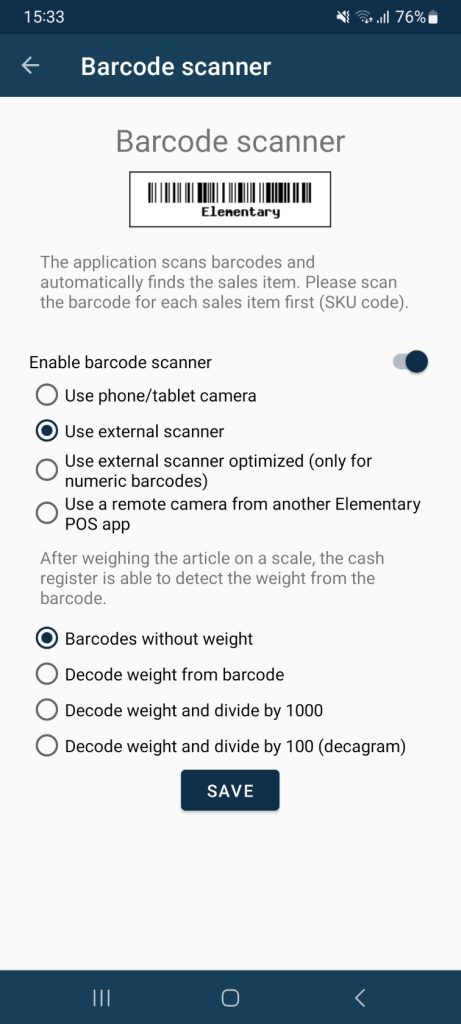
By default, weight is encoded in grams. If you select the basic option Decode weight from barcode, the weight will appear on receipts in grams. Your product prices and inventory deductions must then also be configured in grams.
If you sell some products in larger units, Elementary POS allows you to automatically convert the decoded value. For kilograms choose Decode weight and divide by 1000. For decagrams choose Decode weight and divide by 100.
Some scales may generate product codes or weight values in different barcode positions than the standard format described above. In this case, open Advanced scale settings in the Barcode scanner settings and manually define the correct positions. This ensures accurate data reading.
How to enable selling by weight for a sales item
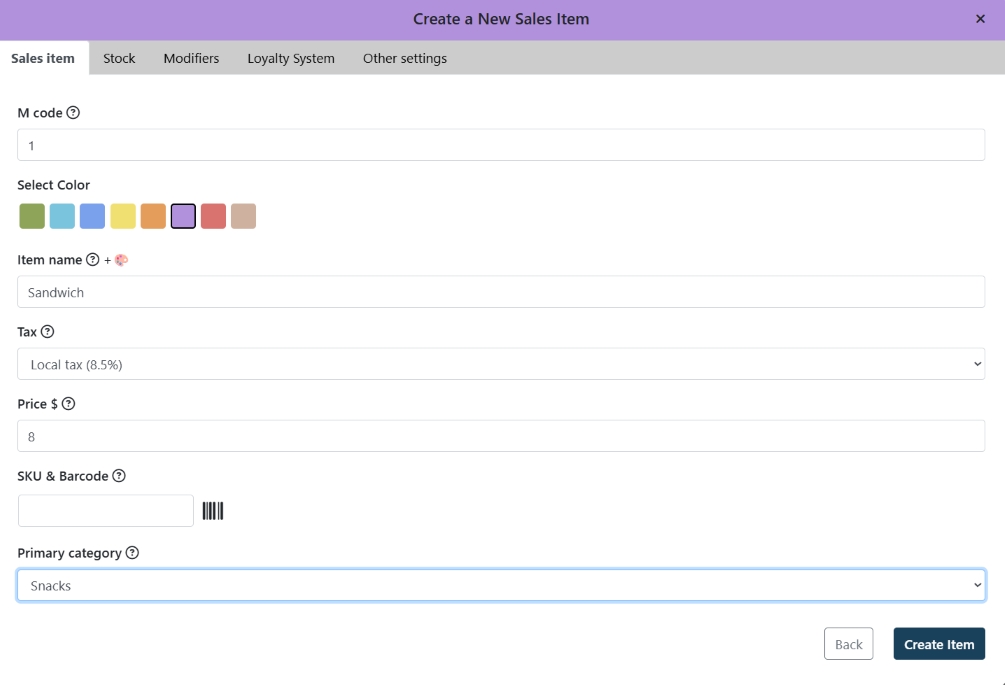
In the Sales Item settings in the Elementary POS Back Office, set the SKU Barcode field. Scan the barcode associated with the product into this field. Elementary POS will then match the product code portion of the barcode with the correct item — even when selling different weights.
You can also manually enter only the product code portion of the barcode. In the example above, this would be 02830.
Set the sales price according to your scanner configuration. If you use Decode weight from barcode, enter the price per gram. If you want to sell by kilogram or decagram, adjust the barcode scanner settings accordingly and enter the price for the selected unit.